Getting Started
Installing
Rest Hippo ships as a native desktop app for macOS, Windows, and Linux. Download the installer for your platform, run it, and launch Rest Hippo — there's nothing else to set up. Your data lives in a local folder under your user profile, so requests, environments, and settings persist between sessions.
You can also install it from the
Mac App Store or the
Microsoft Store. Store editions
are sandboxed, so a few things differ from the direct download: updates arrive
through the store rather than in-app (the two paragraphs below don't apply), the
hippo command-line launcher isn't offered, and the Mac App Store build leaves
out mTLS client certificates.
Rest Hippo can keep itself current: when you turn on automatic checks it looks for new releases shortly after launch, downloads them in the background, and asks before restarting to install. Automatic checking is off by default — enable it in Settings → About, or check any time via Help → Check for Updates…. See Settings → About & updates.
Rest Hippo can install a hippo command so you can start it from a terminal —
set this up from
Settings → Command Line.
Building from source? See the project README —
make installthenmake debugruns Rest Hippo with hot-reload.
The interface
Rest Hippo is organized into three panels:
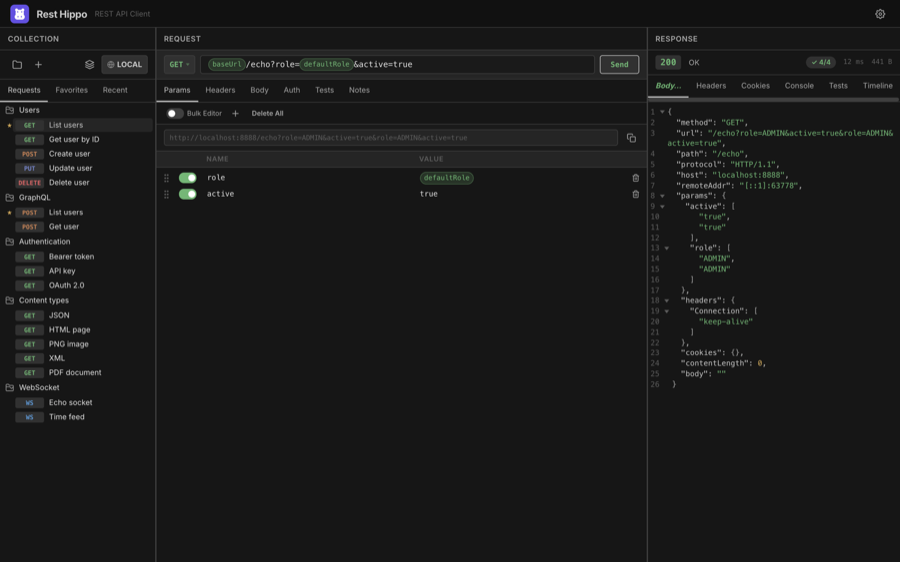
- Collections (left) — the tree of saved requests. Switch between the Requests, Favorites, and Recent tabs at the top, and press Cmd+F (Ctrl+F) while the tree is focused to filter it.
- Request (center) — the method selector, URL bar, and the tabs where you define query parameters, headers, the body, authentication, and captures.
- Response (right) — the response status and timing, plus tabs for the body, headers, cookies, console, and timeline.
The header (top right) holds the Settings control:
| Control | What it does |
|---|---|
| ⚙ Settings | Opens Settings — theme, fonts, the panel layout, proxy, and more. |
The 🌐 environment selector (showing the active environment, e.g. LOCAL)
lives in the Collections panel's toolbar next to the collection selector —
click it to switch environments, or right-click to open the
environments editor.
You can resize the panels by dragging the dividers between them, and Rest Hippo remembers the positions.
Sending your first request
Pick (or create) a request. Click a request in the tree to load it. To make a new one, click the + (New Request) button above the tree, or right-click a folder and choose Add Request.
Choose a method. Click the method button on the left of the URL bar (
GET,POST, …) and pick from the menu.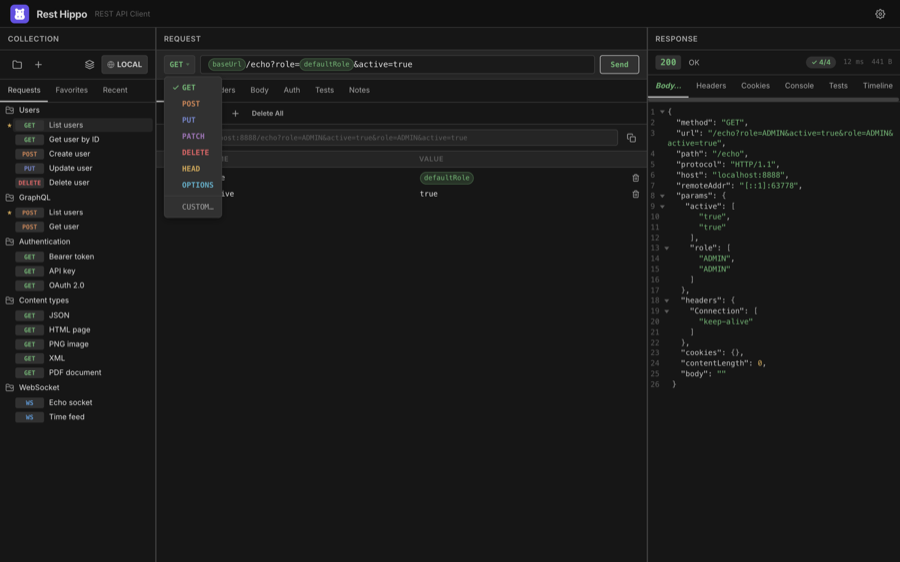
Enter the URL. Type into the URL bar. You can use
{{variables}}anywhere — Rest Hippo shows the resolved URL beneath the bar when Show URL preview is on (Settings → Appearance).Add query params, headers, or a body in the tabs below (all optional). See Building Requests.
Click
Send(or press Enter while the URL bar is focused).
The response appears on the right: the status code and text, the elapsed time, the response size, and the body — pretty-printed and syntax-highlighted by default.
Rest Hippo runs requests natively, not through a browser, so you're never blocked by CORS. Requests can reach
localhost, private networks, and any scheme the OS allows.
Diagnostics & logs
Rest Hippo keeps a rotating log of its own activity and errors in a logs folder
inside your data directory. It records lifecycle and error events — never your
secret values — and is your starting point if something goes wrong.
From the Help menu:
| Item | What it does |
|---|---|
| Reveal Logs | Opens the log folder in your file manager. |
| Export Diagnostics… | Saves a single .txt file containing Rest Hippo's version and build info plus the recent logs — ideal to attach to a bug report. |
If Rest Hippo ever hits an unexpected error it can't recover from, it writes the details to the log and shows a dialog before closing, so the failure is never silent.
One window at a time. Rest Hippo runs as a single instance to protect your data. Launching a second copy simply brings the existing window to the front instead of opening a duplicate.
Supporting Rest Hippo
Rest Hippo is free and always will be — there's no paid tier, license key, trial, or feature locked behind a payment. Every capability is available to everyone.
If the app saves you time and you'd like to say thank you, Help → Support Rest Hippo… (also linked from the About window) opens a donation page in your browser with a suggested $5 tip. It's entirely optional: a donation unlocks nothing, nothing is ever gated or nagged behind it, and the app never tracks or verifies whether you've given. Skip it with zero downside — the gesture is appreciated, never expected.
Where to go next
- Organize your work into collections and folders.
- Reuse values with variables and environments.
- Secure your requests with authentication.
- Dig into the response viewer.